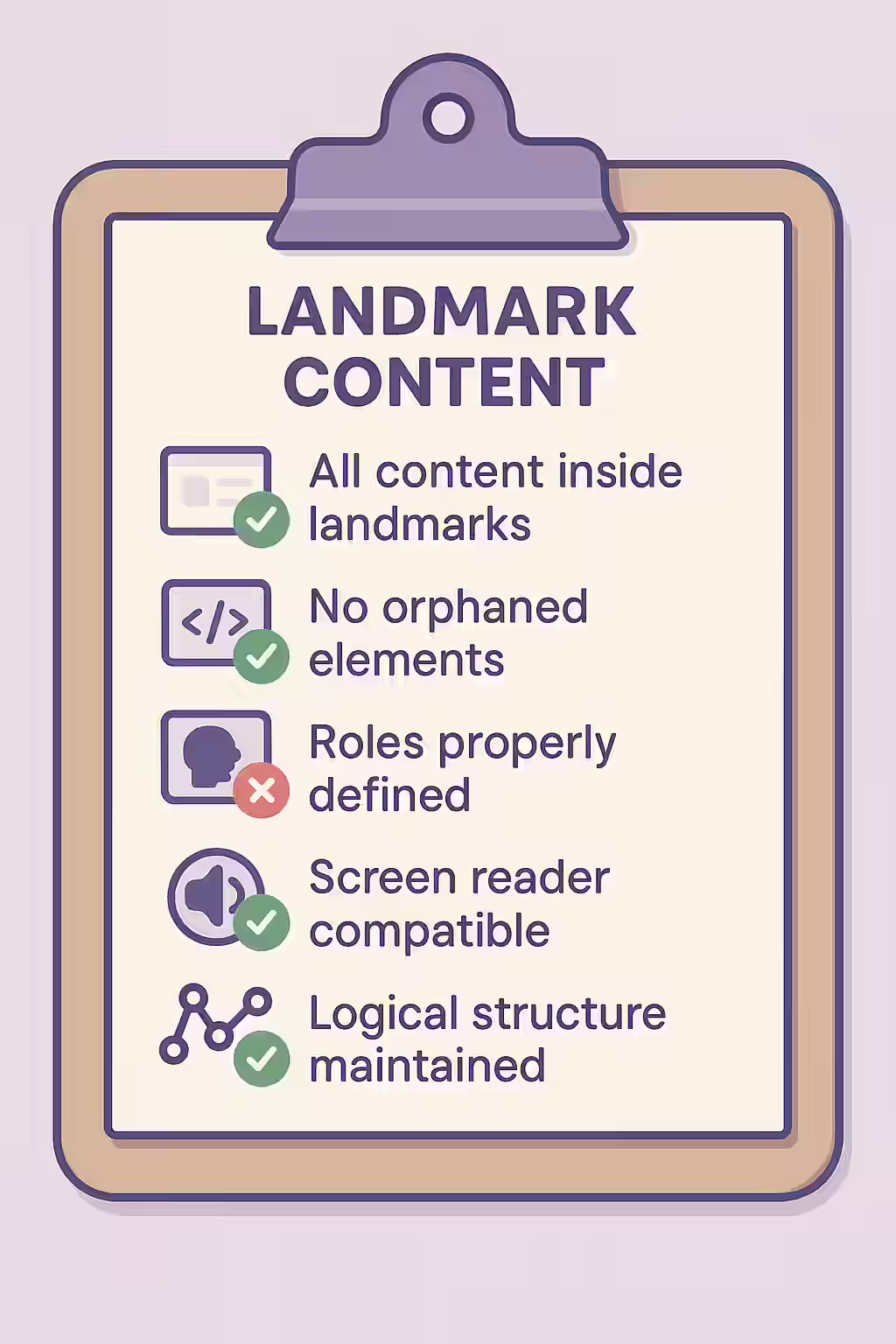
In the world of web accessibility, landmarks are the structural signposts of a webpage. They programmatically define the different sections of your content, such as the header, navigation, and main content area. For users of assistive technologies like screen readers, landmarks are essential for orientation and navigation. The best practice is to ensure that all of your page content is contained within a landmark region, leaving no content orphaned or difficult to find.
Think of your website as a city. Landmarks are the districts: the financial district, the shopping district, the park. They give the city a clear and logical structure. By making sure that all of your page content is contained by landmarks, you can create a more accessible and user-friendly experience for everyone. For a deeper dive into the world of accessibility, see our article on accessibility.

The 8 Landmark Roles
You can create landmarks using either native HTML5 elements or by adding ARIA roles to generic elements. Using the HTML5 elements is the preferred modern practice. For detailed examples, see the W3C’s ARIA Landmarks Example page.
<header>: The `banner` landmark, which typically contains the site title, logo, and primary navigation.<nav>: The `navigation` landmark, used for major blocks of navigation links.<main>: The `main` landmark, which defines the primary and unique content of the page. There should only be one per page.<footer>: The `contentinfo` landmark, which contains information about the parent document, such as copyrights and links to privacy policies.<aside>: The `complementary` landmark, for content that is tangentially related to the main content.<section>with an accessible name: The `region` landmark, for grouping related content.<form>with an accessible name: The `form` landmark, for a collection of form fields.- A `search` role can be applied to a form to identify it as a search tool.
How to Ensure All Content is Within a Landmark
The most common failure of this best practice is having text or other elements that are direct children of the “ tag but are not wrapped in a landmark element. The fix is to ensure all content is properly nested.
<!-- Before: Content is orphaned --> <body> <header>...</header> <p>This paragraph is not in a landmark.</p> <main>...</main> </body> <!-- After: All content is nested correctly --> <body> <header>...</header> <main> <p>This paragraph is now correctly inside the main landmark.</p> ... </main> </body>For another excellent resource, check out this guide to semantic structure from WebAIM.
Frequently Asked Questions
What are landmarks?
Landmarks are a way of identifying the different sections of a webpage using specific HTML5 elements or ARIA roles. They act as structural signposts that help users of assistive technologies (like screen readers) to understand the layout of a page and navigate to the main sections quickly.
What is the difference between a <header> and an <h1>?
A `<header>` is a landmark that defines a container for introductory content or navigational links for a section. An `<h1>` is a heading that defines the main title of the page. A page’s `<h1>` is almost always located inside the `<main>` landmark, not the `<header>`.
Can I use a <div> as a landmark?
Yes, but it’s not the best practice. You can make a `<div>` a landmark by adding an ARIA role (e.g., `<div role=”navigation””>`). However, it is always better to use the native HTML5 element (e.g., `<nav>`) as it has the landmark role built-in and is more semantic.
Ready to make your website more accessible? Start your Creeper audit today and see how you can improve your website’s accessibility.