In the world of web accessibility, not every element on a page is meant to be consumed by a screen reader. Some elements are purely decorative—visual fluff like spacer images, stylistic icons, or layout tables. For these presentational elements, it is a best practice to explicitly hide them from assistive technologies. This reduces the amount of noise and unnecessary information a screen reader user has to go through, creating a cleaner and more efficient user experience.
Think of your website as a newspaper. You want the reader to focus on the headlines and the articles, not the decorative borders between the columns. By making sure that your presentational elements are ignored by screen readers, you can create a more accessible and user-friendly experience for everyone. For a deeper dive into the world of accessibility, see our article on accessibility.
Two Ways to Hide Decorative Content
There are two primary ARIA attributes used to hide decorative content from screen readers. They have different effects and should be used in different situations.
role="presentation"(orrole="none"): This attribute removes the semantic meaning of an element but still exposes its content to screen readers. For example, if you use a `
` for layout, adding `role=”presentation”` will make the screen reader ignore the table semantics (rows, columns) but still read the content inside the cells. For more on this, see the MDN guide to the presentation role.aria-hidden="true": This attribute completely hides the element and all of its children from the accessibility tree. This is the best choice for truly decorative content that provides no information, such as a stylistic icon next to a text label.
Implementation Examples
Fixing presentational elements that are not ignored by screen readers is a simple but important task. Here’s how to do it.
Using `aria-hidden=”true”` for a Decorative Icon
<!-- Before: Screen reader will announce "icon, graphic" --> <button> <span class="icon-save"></span> Save </button> <!-- After: Screen reader ignores the icon and just reads "Save, button" --> <button> <span class="icon-save" aria-hidden="true"></span> Save </button>Using `role=”presentation”` for a Layout Table
<!-- Before: Screen reader announces a data table with one row and two columns --> <table> <tr> <td>Content A</td> <td>Content B</td> </tr> </table> <!-- After: Screen reader ignores the table structure and just reads "Content A, Content B" --> <table role="presentation"> <tr> <td>Content A</td> <td>Content B</td> </tr> </table>For more on the importance of a well-structured website, check out this guide to decorative images from the W3C.
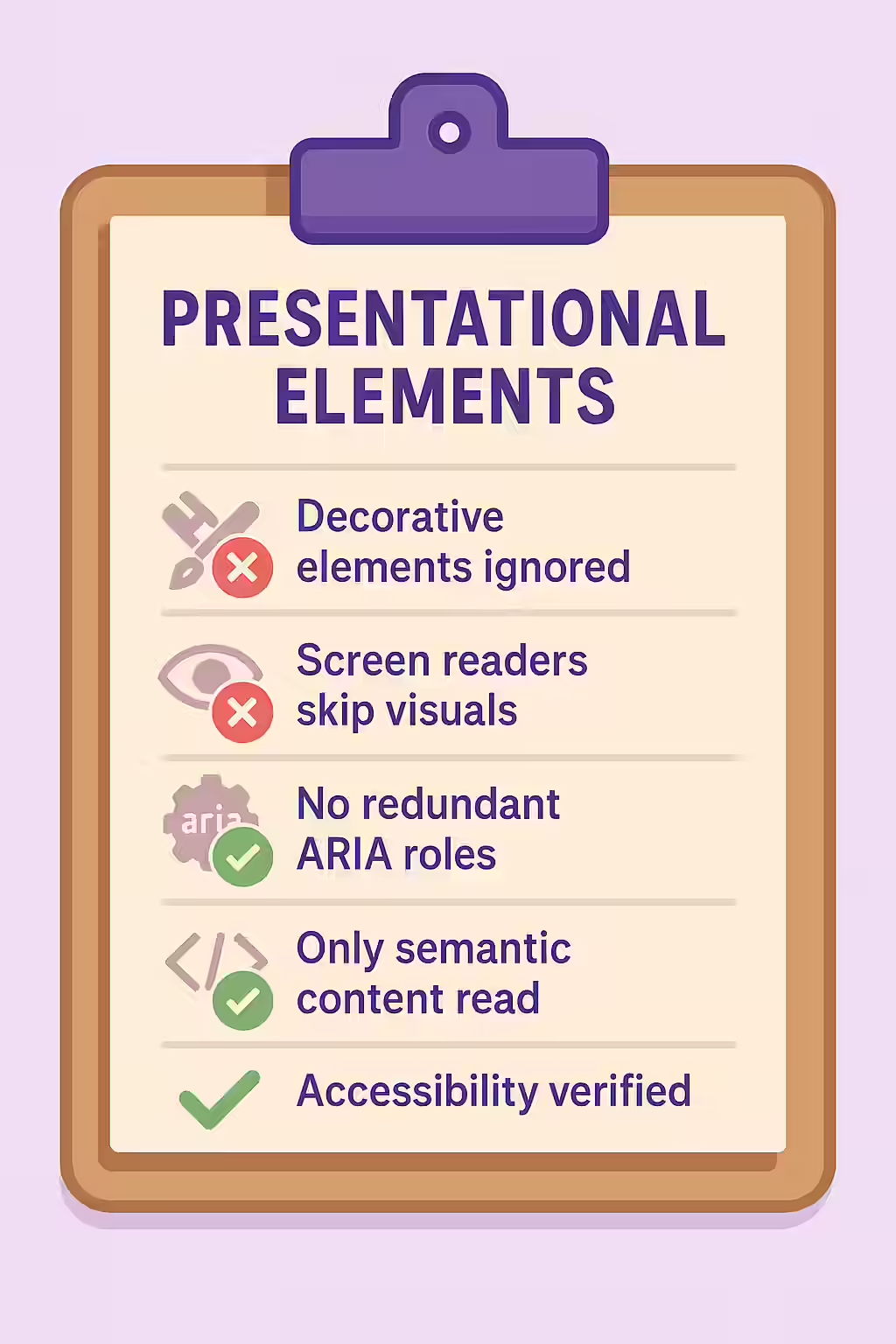
Frequently Asked Questions
What are presentational elements?
Presentational elements are elements that are used for purely decorative purposes and do not add any semantic information to the page. Examples include spacer images, decorative icons, or elements used only for styling.
What is the difference between role=’presentation’ and aria-hidden=’true’?
`role=”presentation””` (or `role=””none””`) removes the semantic meaning of an element but still allows screen readers to access its content. `aria-hidden=””true””` completely removes the element and all of its children from the accessibility tree, making it invisible to screen readers. For purely decorative elements, `aria-hidden=””true””` is often the better choice.
Why is it important for my presentational elements to be ignored by screen readers?
It’s important for your presentational elements to be ignored by screen readers to reduce ‘noise’ and allow users to focus on the meaningful content of the page. Announcing decorative elements adds clutter and makes the page harder to navigate.
Ready to make your website more accessible? Start your Creeper audit today and see how you can improve your website’s accessibility.
“