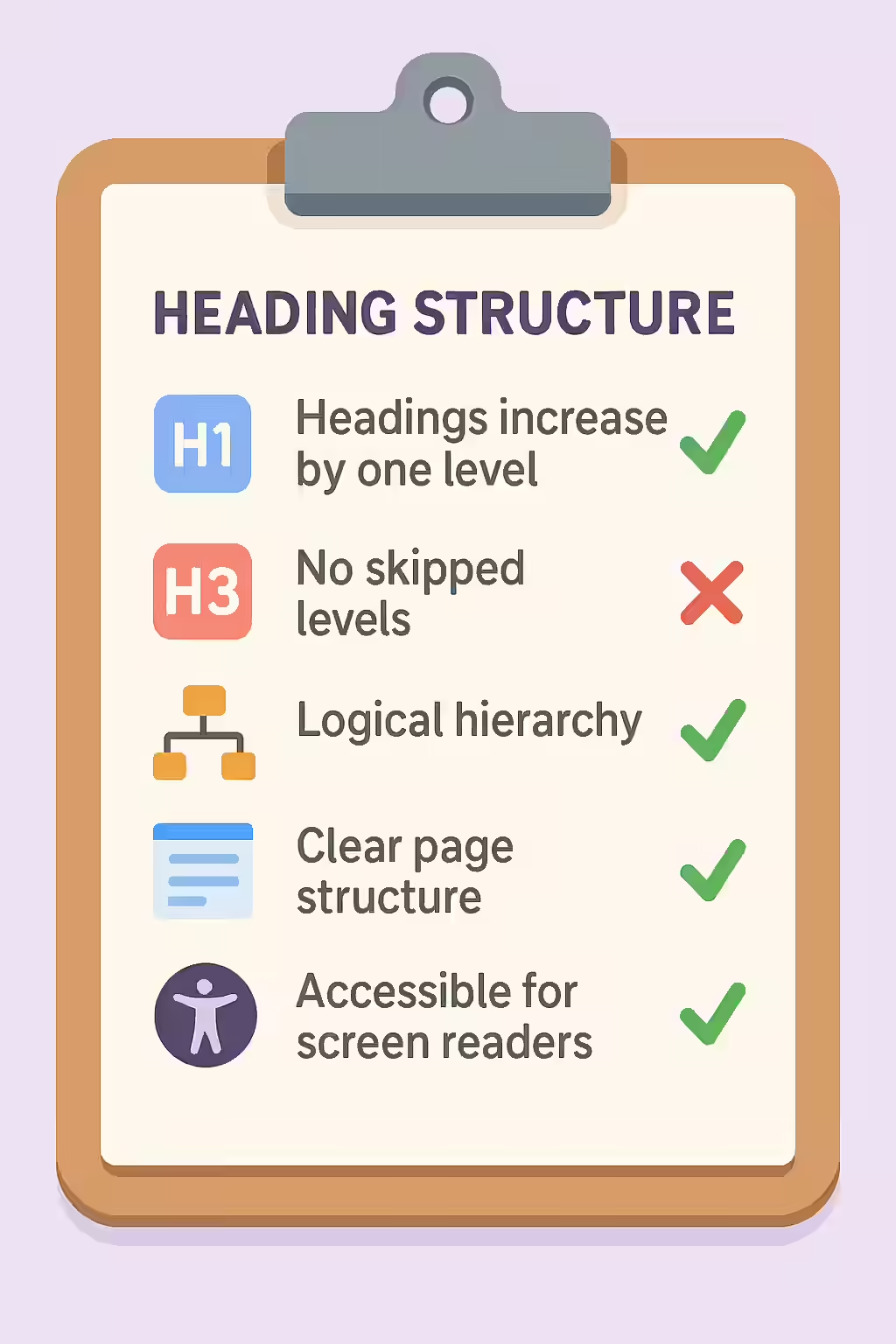
A well-structured webpage uses heading tags (`<h1>`, `<h2>`, `<h3>`, etc.) to create a logical outline of the content. A critical rule for both accessibility and SEO is that heading levels should only increase by one. This means you should not skip levels, for example, by having an `<h1>` followed directly by an `<h3>`. This breaks the semantic structure of the page, creating a confusing experience for users with screen readers and making it harder for search engines to understand your content’s hierarchy.
Think of your heading structure as the table of contents for your page. The `<h1>` is the book title, `<h2>`s are the chapter titles, and `<h3>`s are the sub-sections within a chapter. Skipping from the book title straight to a sub-section would be confusing, and the same is true for your webpage. For a broader look at accessibility, see our main guide on accessibility.

Why a Logical Heading Order is Non-Negotiable
A sequential heading structure is a fundamental requirement of a well-built webpage. As detailed in the W3C’s Web Accessibility Tutorials, a logical heading order is essential for navigation.
- Accessibility: Users of screen readers rely on the heading structure to navigate a page. They can use keyboard shortcuts to jump between headings. A skipped level creates a confusing and disjointed experience.
- SEO: Search engines use heading tags to understand the structure and topics of your content. A logical hierarchy helps them to parse the page and identify the most important themes.
- User Experience: A clear visual hierarchy, which should be reflected in your heading tags, makes your content easier for all users to scan and digest.
A Step-by-Step Guide to Fixing Your Heading Structure
The goal is to ensure that your heading levels descend in a logical, sequential order. For more on this, check out the MDN guide to heading elements.
<!-- Before: Skipped heading level -->
<body>
 <h1>The Main Title</h1>
 <p>Introduction...</p>
 <h3>A Sub-Section</h3> <!-- Incorrect: Should be an h2 -->
 <p>Content...</p>
</body>
<!-- After: Correct, sequential heading levels -->
<body>
 <h1>The Main Title</h1>
 <p>Introduction...</p>
 <h2>A Sub-Section</h2> <!-- Correct -->
 <p>Content...</p>
</body>
Remember to use CSS for styling, not heading levels. If you need a heading to look smaller, adjust its font size in your stylesheet rather than choosing an incorrect heading level. For more on the main heading, see our guide on H1 setup.
Frequently Asked Questions
Why can’t I just use CSS to make text look like a heading?
Styling text with CSS to look like a heading is a major accessibility issue. Screen readers and search engines rely on the actual HTML tags (`<h1>`, `<h3>`, etc.) to understand the document’s structure. Using bold or larger text instead of a proper heading tag makes the content inaccessible to visually impaired users.
Can a page have multiple <h1> tags?
While the HTML5 standard technically allows for multiple `<h1>` tags if they are nested in different sectioning elements, it is a widely accepted SEO and accessibility best practice to use only one `<h1>` per page. This creates a single, clear topic for the page and avoids potential confusion for assistive technologies.
Is it okay to have an H2 followed by another H2?
Yes, that is perfectly acceptable. The rule is that you should not skip levels in a downward direction. It is fine to have multiple H2s in a row, or to go from an H3 back up to an H2 if you are starting a new, main section of the document.
Is your content’s ladder missing a rung? Start your Creeper audit today to find and fix all heading structure issues.