For search engines to properly understand your website, they need to be able to see it as a user does. This means they need access to all the resources that are used to render the page, including CSS, JavaScript, and images. When these resources are blocked by your `robots.txt` file, you have pages with blocked resources. This is a critical technical SEO issue that can prevent search engines from correctly rendering and indexing your content, especially in the age of mobile-first indexing.
Think of it as giving someone a book, but not allowing them to see the pictures or the formatting. They can read the words, but they’re missing the full context and experience. Similarly, a search engine that can’t access your CSS or JavaScript is missing a huge part of the picture. For a broader look at crawlability, see our guide on the indexability category.
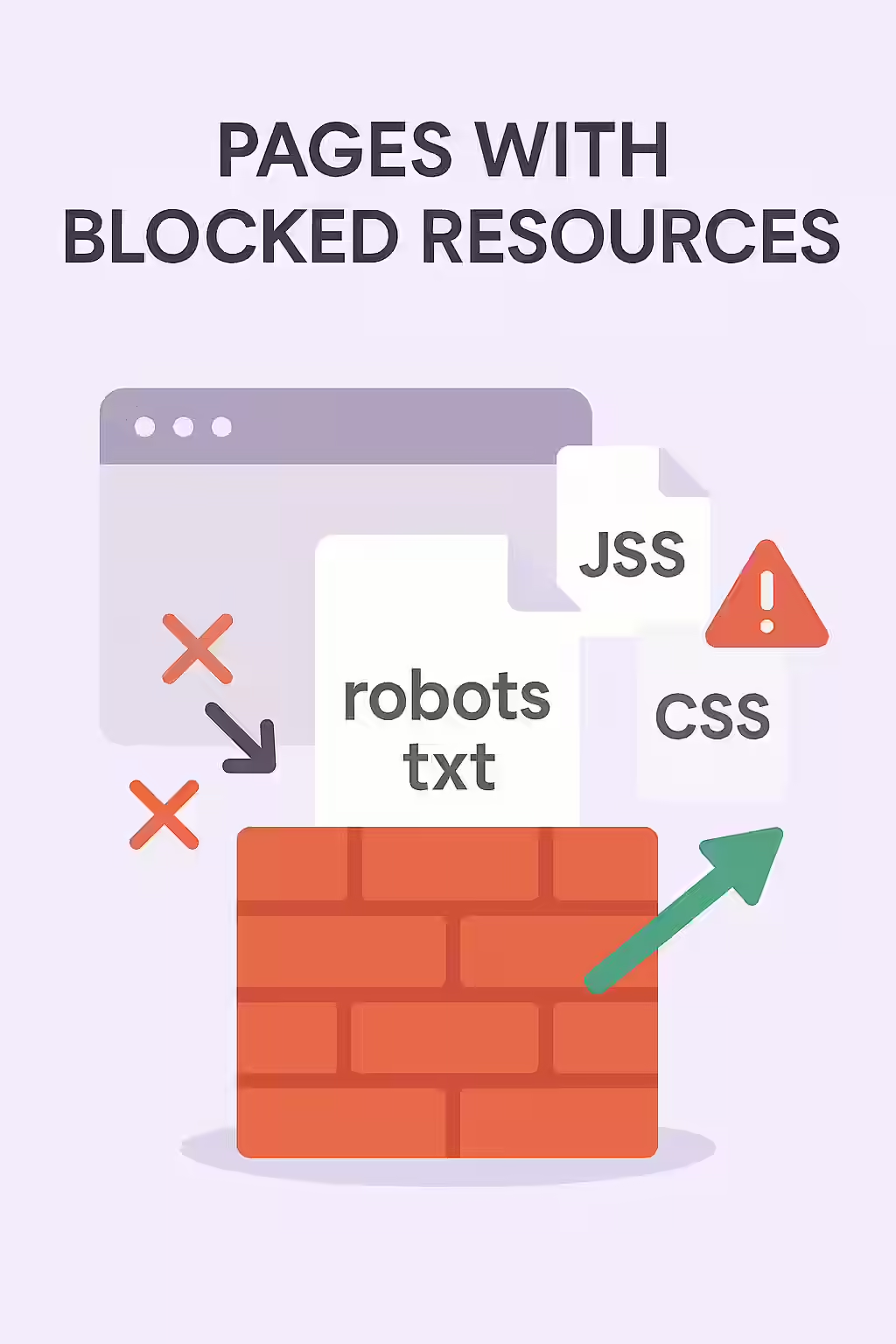
Why You Must Allow Google to See Your Whole Page
As explained in Google’s own guide to understanding the Page Indexing report, blocked resources can lead to a host of problems.
- Incomplete Rendering: If Google can’t access your CSS and JavaScript, it can’t render your page correctly. This can lead to it missing important content or misinterpreting your page’s layout.
- Mobile Usability Issues: A page that looks fine on a desktop might be completely broken on mobile if the mobile-specific CSS is blocked. This can cause your page to fail the mobile-friendly test.
- Negative Ranking Impact: A page that cannot be fully rendered is seen as a poor user experience, which can negatively impact your rankings.
A Step-by-Step Guide to Unblocking Your Resources
The goal is to ensure that your `robots.txt` file is not preventing search engines from accessing any critical resources. For more on this, check out this guide to robots.txt from Google.
Code Example: The Fix
# Before: Blocking all CSS and JS files User-agent: * Disallow: /css/ Disallow: /js/ # After: Allowing all CSS and JS files User-agent: * Allow: /css/ Allow: /js/ - Identify Blocked Resources: Use an SEO audit tool like Creeper or the URL Inspection tool in Google Search Console to identify any pages with blocked resources.
- Analyze Your `robots.txt` File: Open your `robots.txt` file and look for any `Disallow` directives that are blocking the directories or files that were flagged in your audit.
- Remove the Blocking Directives: Edit your `robots.txt` file to remove the overly restrictive `Disallow` rules. In most cases, you should allow Googlebot to crawl all of your CSS and JavaScript files.
- Test Your Changes: Use the robots.txt Tester in Google Search Console to ensure that your changes have unblocked the necessary resources.
Frequently Asked Questions
What is a blocked resource?
A blocked resource is any file that is necessary to render a page—such as a CSS stylesheet, a JavaScript file, or an image—that is disallowed for crawling in your site’s `robots.txt` file.
Why is it a problem if Google can’t see my CSS or JavaScript?
Google renders pages to understand their layout, content, and user experience. If it can’t access your CSS and JavaScript, it can’t see the page as a user would. This can lead to a misunderstanding of your content, mobile usability issues, and a negative impact on your rankings.
How do I find and fix blocked resources?
The best way is to use a website crawler like Creeper that identifies all blocked resources. You can also use the URL Inspection tool in Google Search Console to test a single page. The fix is to edit your `robots.txt` file to remove the `Disallow` directive for the critical resources that are being blocked.
Ready to unblock your pages? Start your Creeper audit today and see how you can improve your website’s JavaScript SEO.