Internal PDFs are PDF documents that are hosted on your own domain and linked to from your webpages. While search engines like Google can crawl and index the text content of PDFs, they are often a blind spot in a company’s SEO strategy. Unoptimized PDFs can provide a poor user experience, especially on mobile, and may not rank as well as their HTML counterparts. However, when optimized correctly, they can be a valuable source of organic traffic.
The first question to ask is whether the content *needs* to be in a PDF. If the primary goal is for users to read the content online, it should almost always be a standard internal HTML page. If the goal is to provide a downloadable, printable document like a whitepaper or a manual, then a PDF is appropriate. For a broader look at your site’s components, see our guide on the resources category.
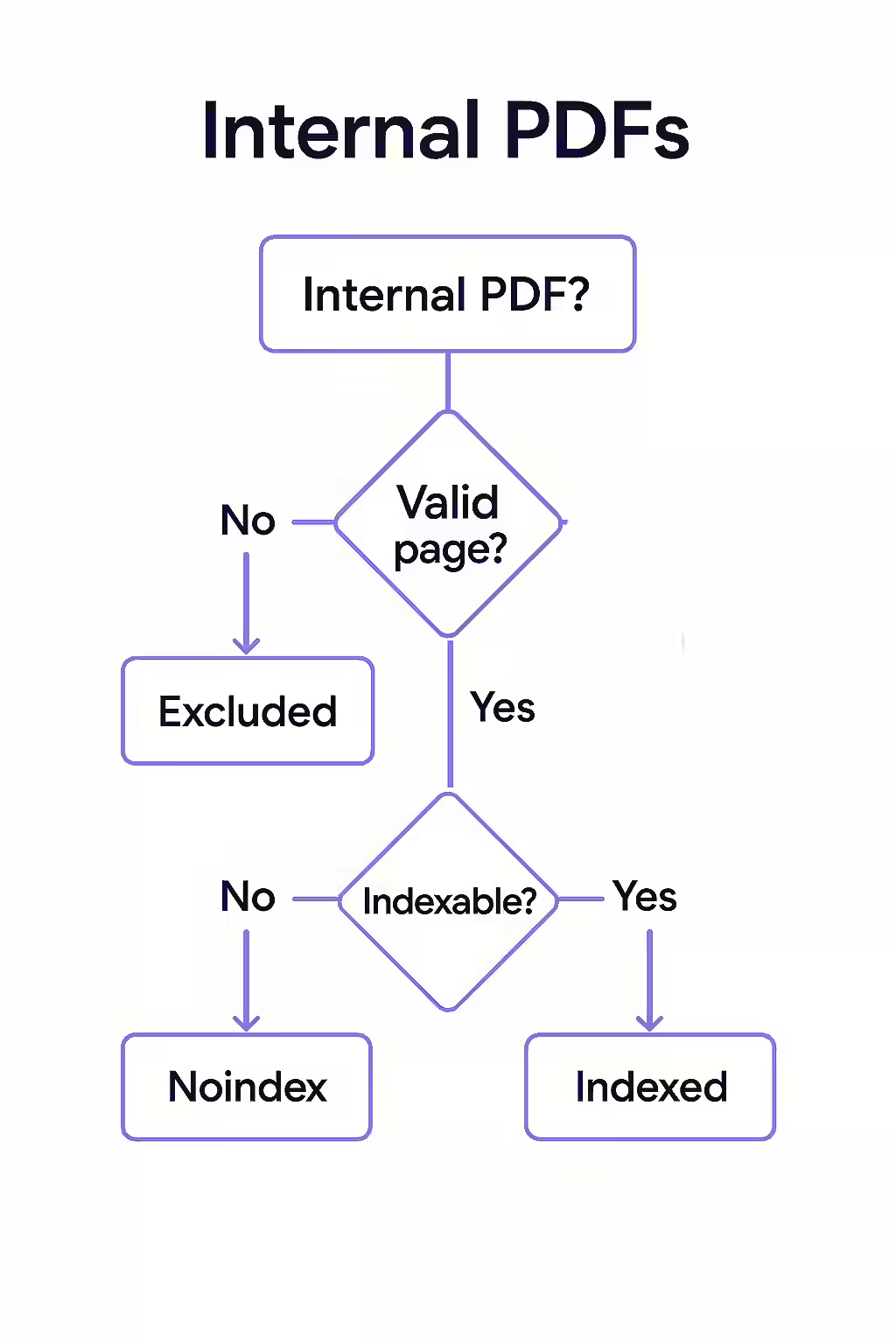
The SEO Checklist for a Search-Friendly PDF
If you must use a PDF, it’s crucial to optimize it for search engines. As Google’s documentation confirms, they can index most text-based files. Here’s how to give your PDFs the best chance to rank:
- Optimize the File Name: Use a descriptive, keyword-rich file name (e.g., `technical-seo-audit-checklist.pdf`).
- Set the Title and Meta Description: In your PDF creation software, set the document’s ‘Title’ property. Google often uses this as the title tag in search results. The ‘Subject’ can sometimes be used as the meta description.
- Use High-Quality, Searchable Text: Ensure your PDF is not just an image of text. It must be a text-based document so search engines can read and index the content.
- Compress the File: Large PDFs are slow to download. Use a compression tool to reduce the file size as much as possible without sacrificing quality.
- Include Links: Add relevant internal links to other pages on your site and external links to authoritative sources within the PDF content.
- Optimize Images: All images within the PDF should have alt text, just as they would on a webpage.
When to Convert PDFs to HTML
For your most important content, converting a PDF into a dedicated HTML page is the best strategy for maximizing SEO and user experience. For a deep dive into this topic, this guide from the Nielsen Norman Group explains the usability challenges of PDFs in detail.
An HTML page is responsive, easier to navigate, and allows for better analytics tracking. By converting your high-value PDFs, you make the content more accessible and give it a better chance to rank and convert, which is a key part of a successful on-page SEO strategy.
Frequently Asked Questions
Is it better to use a PDF or an HTML page for content?
From an SEO and user experience perspective, an HTML page is almost always superior. HTML pages are responsive, easier to navigate, and provide more tracking and analytics capabilities. You should only use a PDF when the document’s primary purpose is to be downloaded, printed, or preserved in a specific format.
Do links in a PDF pass PageRank?
Yes, Google has confirmed that links within an indexed PDF document are treated similarly to links on an HTML page and can pass PageRank. This makes it important to include relevant internal and external links within your PDF content.
How can I prevent my PDFs from being indexed?
Since you cannot add a ‘noindex’ meta tag to a PDF file, the best way to prevent it from being indexed is to use the `X-Robots-Tag: noindex` HTTP header. This is a server-level instruction that tells search engines not to include the file in their index.
Are your PDFs optimized for search? Start your Creeper audit today to get a complete inventory of all your internal resources.