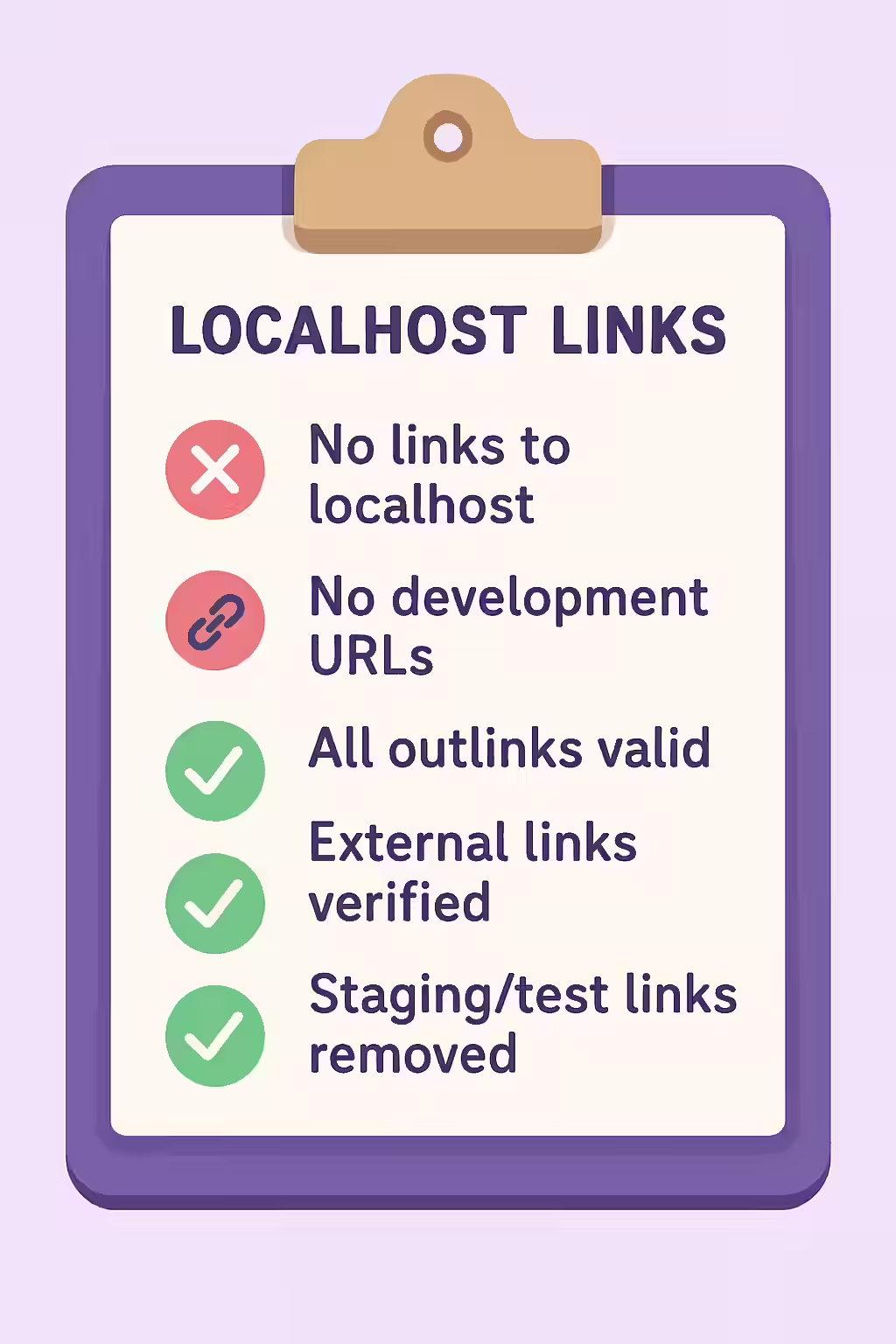
An outlink to localhost is a hyperlink on your live website that points to a URL on the user’s own computer (e.g., `http://localhost/page` or `http://127.0.0.1/page`). This is a critical technical error that is almost always the result of a mistake during development. For any user or search engine crawler accessing your site, these are dead links that lead to a “connection refused” error, wasting crawl budget and creating a broken user experience.
Think of it as leaving a note for a friend to “meet at my house” without giving them your address. The instruction is useless because “my house” is a relative term that means something different to everyone. Similarly, ‘localhost’ refers to the user’s own machine, not your server. For a broader look at your site’s architecture, see our main guide on link structure.

Why Localhost Links Are a Critical Error
These links are a sign that development code has been accidentally pushed to your live site. For a deep dive into this topic, this guide to internal linking from Moz is an excellent resource.
- They Are Broken Links: For 99.9% of users, these links will lead to an error page, as they are not running a local server.
- They Waste Crawl Budget: Search engine crawlers will try to follow these links and will receive an error, wasting valuable crawl budget on dead ends.
- They Signal a Poorly Maintained Site: This type of error is a strong signal to search engines that your site is not well-maintained, which can impact trust and crawling behavior over time.
A Step-by-Step Guide to Fixing Localhost Links
The goal is to find and remove every link on your site that points to ‘localhost’ or ‘127.0.0.1’. For Google’s perspective on this, their guide on making your links crawlable is a must-read.
- Crawl Your Site: Use an SEO audit tool like Creeper to perform a full crawl. The tool will identify all outbound links from your site.
- Filter for Localhost Links: In your crawl report, filter the list of outlinks for any that contain the hostname ‘localhost’ or the IP address ‘127.0.0.1’.
- Identify the Source Pages: The report will show you which of your pages contain these broken links.
- Remove or Update the Links: Edit the HTML of the source pages to either remove the localhost links or, if they were intended to be internal links, update them to use the correct relative or absolute path on your live domain.
The SEO Power of a Well-Structured Website
A well-structured website with a clean and functional internal linking strategy is easier for search engines to crawl and for users to navigate. By fixing outlinks to localhost, you can improve your crawl efficiency, provide a better user experience, and ensure that your site appears professional and well-maintained. This is a key part of a successful on-page SEO strategy.
Frequently Asked Questions
What is ‘localhost’?
‘Localhost’ is a standard hostname that refers to the computer you are currently using. It is commonly used by developers to test websites on their own machines before deploying them to a live server. Its IP address is almost always `127.0.0.1`.
How do these links end up on a live site?
This is almost always a mistake made during the development or deployment process. A developer might hardcode a link to their local environment for testing, and then forget to change it to the live URL before pushing the code to the production server.
How can I find all the localhost links on my site?
The most effective way is to use a website crawler like Creeper. It will scan every page on your site and specifically flag any `<a>` or `<link>` tags that have an `href` attribute pointing to ‘localhost’ or ‘127.0.0.1’.
Are your links leading to a dead end? Start your Creeper audit today to find and fix all outlinks to localhost.